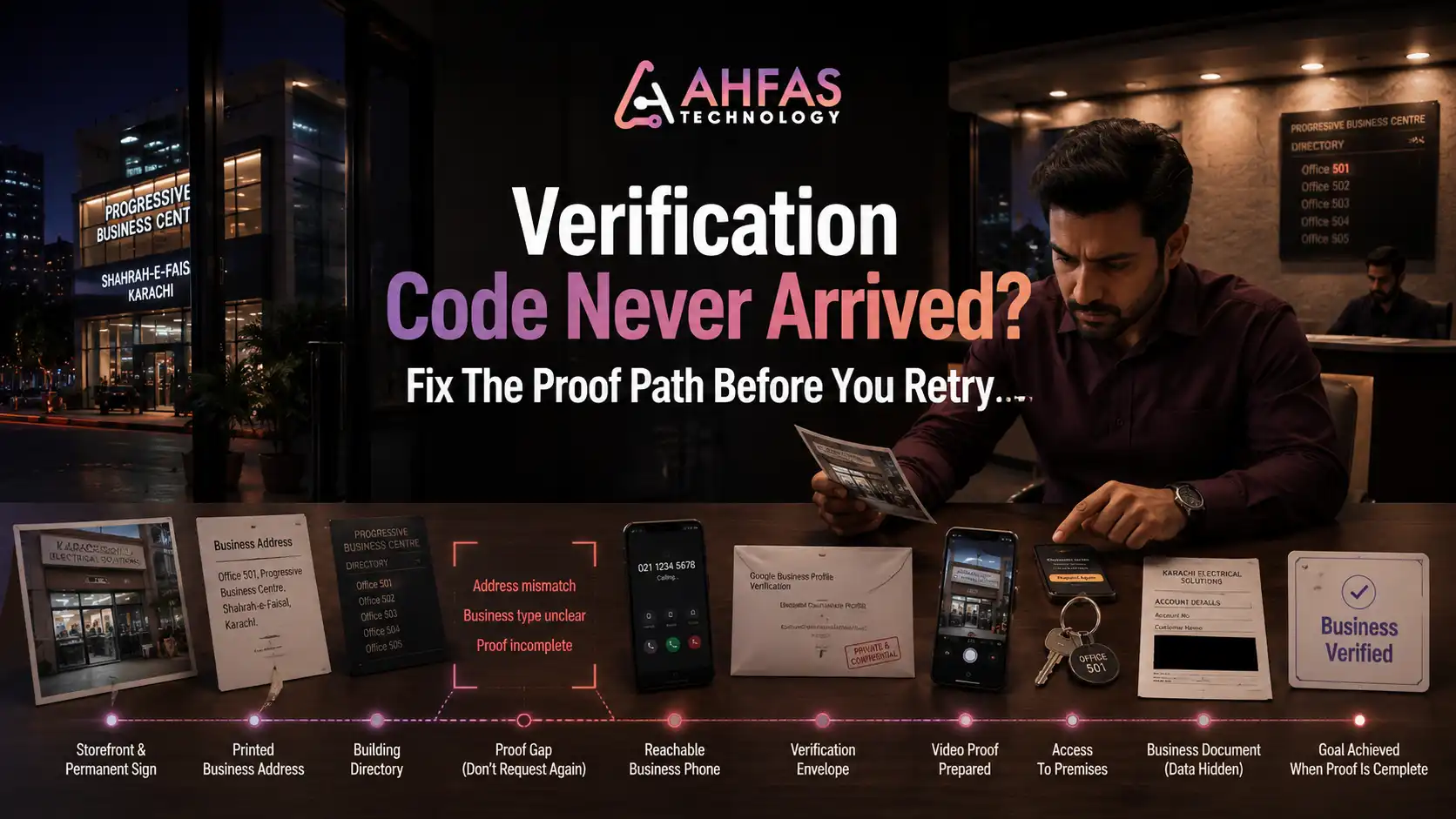
You requested the verification code.
Nothing arrived.
You waited, checked your messages, asked the building receptionist, and tried again. Your profile still says Get verified, while customers cannot see or trust the business information you need to manage.
For businesses struggling with Google Business Profile verification in Pakistan, the safest response is not to keep requesting new codes. First confirm that your business is eligible, your profile matches the real-world business, and your address or phone number can receive the selected method. Then follow the correct recovery path for postcard, phone, SMS, or video verification.
This matters in Pakistan, where Google accounted for 97.13% of search engine market share in June 2026, according to Statcounter Global Stats. A verified and accurate profile helps businesses control how they appear across Google Search and Maps, although verification alone does not guarantee higher rankings.
Direct answer: Google automatically chooses the verification methods available to each profile. If a postcard was offered, most codes arrive within 14 days, expire after 30 days, and become invalid when you request a new one or edit your business name, address, or category. If the active method fails after the stated period, review your eligibility and profile information before contacting Google Business Profile Support.
Key Takeaways
- Google decides which verification methods your profile can use.
- A missing code may indicate a delivery, address, eligibility, ownership, or profile-consistency problem.
- Do not repeatedly request postcards or edit core details while waiting.
- Phone verification requires a direct line that can receive calls or SMS messages.
- Video verification must prove the location, business activity, and your authority to manage the business.
- Virtual offices, online-only businesses, and inaccurate addresses may not qualify.
- Verification, ownership, duplication, and suspension require different solutions.
- Google Support should be contacted only after you confirm that the profile follows the guidelines.
What Does Google Business Profile Verification Do?
Verification confirms that you own or are authorised to manage the business represented on Google.
Once verified, you can manage information such as:
- business name
- address or service area
- telephone number
- website
- opening hours
- services
- photographs
- customer reviews
- business updates
Verification helps Google confirm that the profile represents a legitimate, eligible business and that the person making changes has authority to manage it. Google may require one verification method or more than one, depending on the business type, location, public information, operating hours, and other profile signals. (Google Help)
Verification does not automatically move the business to the top of Google Maps. After approval, visibility still depends on relevance, distance, prominence, accurate profile information, the website, reviews, competition, and the quality of your broader search presence.
Businesses that need help connecting their website, Google profile, content, and location-based visibility can explore professional SEO and local visibility support.
Which Verification Methods Can Google Offer in Pakistan?
Your profile may show one or more of the following:
- phone call
- SMS
- postcard
- recorded business video
- live video call
- instant verification through an eligible Search Console setup
- another method selected by Google
You cannot manually force a verification method that does not appear on your profile.
Google automatically determines which options are available. The selection may differ between two businesses operating in the same city or industry. In some cases, Google may ask the business to complete more than one method.
For example:
- A Karachi restaurant may receive recorded video verification.
- A clinic may receive phone or postcard verification.
- A service-area business may need to prove its equipment and management through video.
- A previously verified profile may require re-verification after major business changes.
The correct action is to complete the method currently shown on the profile rather than creating another listing or repeatedly changing account details.
Google Business Profile Verification Diagnosis Table
| What You See | Most Likely Issue | What to Check First |
| SMS code does not arrive | Number cannot receive automated texts, carrier filtering, or incorrect number | Confirm the country code, signal, and direct SMS access |
| Automated call never arrives | IVR, extension, blocked calls, or incorrect number | Use a direct business line without a phone menu |
| Postcard does not arrive | Address, postal delivery, unit details, or eligibility issue | Check the full physical address and wait the stated period |
| Old postcard arrives but code fails | New code requested or profile details edited | Use only the latest active verification code |
| Code works but profile remains pending | Google is reviewing the submission | Wait up to five business days |
| Video is rejected | Missing location, business, or management evidence | Review the rejection reasons and record a complete new video |
| No verification option appears | Profile, eligibility, account, or technical issue | Sign in with the correct account and contact support |
| Someone else manages the listing | Ownership issue | Request ownership instead of creating a duplicate |
| Profile is suspended or disabled | Policy restriction | Correct the violation and use the appeal process |
| Profile asks for verification again | Business details changed or earlier evidence was insufficient | Complete the newly offered re-verification method |

The AHFAS Verification Recovery Path
Use the following sequence when a code never arrives.
Do not skip directly to another code request. A repeated request can restart the process without resolving the underlying problem.
Step 1: Confirm That the Business Is Eligible
Google Business Profiles are intended for businesses that make in-person contact with customers during their stated operating hours.
Eligible business models commonly include:
- retail shops
- restaurants
- clinics
- professional offices that receive customers
- service providers who visit customers
- hybrid businesses that serve customers on-site and off-site
- eligible seasonal businesses with permanent signage
Businesses that may be ineligible include:
- online-only brands with no in-person customer contact
- lead-generation listings
- rental properties without a staffed sales or leasing office
- businesses using a P.O. box or remote mailbox
- temporary addresses
- virtual offices where the business does not operate
- businesses represented by someone without authorisation
Google specifically states that online-only businesses and lead-generation companies are not eligible for a standard Business Profile. The business must generally interact with customers in person.
Eligibility Questions to Answer
Before requesting another code, ask:
- Do customers visit this location?
- Does the business visit or deliver directly to customers?
- Is this the actual operating address?
- Does the business have authority to use this location?
- Is the business staffed during the listed hours?
- Is permanent signage present where required?
- Is this a genuine business rather than a lead-generation listing?
- Does the business name match its real-world branding?
If the answer reveals an eligibility problem, another verification request will not fix it.
Step 2: Identify the Correct Business Type
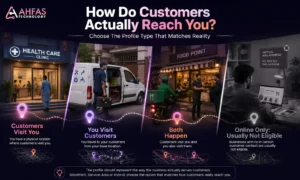
The profile should represent the way the business actually serves customers.
Storefront Business
Use a storefront profile when customers visit the business at its stated address.
The location should generally have:
- permanent business signage
- staff during published hours
- customer access
- a genuine operational space
- an accurate address and map pin
Businesses displaying an address should maintain fixed signage showing the business name at that location.
Service-Area Business
Use a service-area profile when the business travels to customers but does not receive customers at its base address.
Examples include:
- plumbers
- electricians
- cleaning companies
- mobile repair providers
- installers
- home-service businesses
- delivery-based service providers
If customers do not visit the address, remove it from public display and list the areas the business genuinely serves.
Google allows up to 20 service areas, entered as cities, postal codes, or other supported areas. The overall service area should generally remain within about two hours of driving time from the business base.
Hybrid Business
A hybrid business receives customers at its location and also visits or delivers to customers.
Examples include:
- a restaurant with dine-in and delivery
- an auto repair shop offering roadside assistance
- a retailer that also provides home installation
A hybrid business can display its storefront address and add appropriate service areas, provided the location is staffed and able to receive customers during the stated hours.
Step 3: Check the Business Name
The profile name should match the name used in the real world.
It should be consistent across:
- storefront signage
- website
- invoices
- business cards
- official documents
- social profiles
- public directories
Do not add:
- unnecessary service keywords
- city names that are not part of the business name
- telephone numbers
- website addresses
- taglines
- promotional claims
Correct Example
ABC Dental Clinic
Risky Example
ABC Dental Clinic Best Dentist Karachi Emergency Treatment
Google requires businesses to represent their names as customers recognise them in the real world. Adding unnecessary information may result in profile changes, verification problems, or suspension.
Do not edit the business name while waiting for a postcard unless Google specifically asks you to correct it. Changing it can invalidate the active code.
Step 4: Check the Pakistan Address Format
An incomplete, inconsistent, or difficult-to-locate address can stop a postcard from reaching the right person.
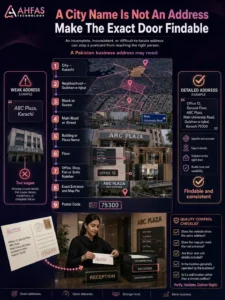
A Pakistan business address may need:
- shop, office, flat, or suite number
- floor
- building or plaza name
- plot or street number
- block or sector
- neighbourhood
- city
- postal code
Example Structure
Office 12, Second Floor, ABC Plaza, Main University Road, Gulshan-e-Iqbal, Karachi 75300
This is only a format example. Use the business’s genuine operating address.
Address QA Checklist
Confirm that:
- the suite, shop, or office number is included
- the floor is included where relevant
- the building or plaza name is correct
- the block or sector is accurate
- the postal code is correct
- the city and neighbourhood match
- the map pin marks the actual entrance
- the website shows the same address
- public business records use consistent information
- the address is not a P.O. box or remote mailbox
- the location is not an ineligible virtual office
Google advises businesses to enter a complete, precise address and include suite, building, or floor information where relevant. If Google cannot find the exact location, the business can adjust the map pin.
What About Coworking Spaces?
A business cannot normally use a coworking space simply because it rents a desk or receives mail there.
Google allows a coworking office only when the business:
- maintains clear signage
- receives customers at the location
- is staffed during business hours by its own staff
- genuinely operates from the location
A rented mailing address without genuine operations is treated as a virtual office and is not eligible.
What to Do When the Phone or SMS Code Never Arrives
Phone and SMS verification are available only when Google offers them.
Check the Number Carefully
Confirm that:
- the Pakistan country code is correct
- the mobile or landline number is active
- the device has network coverage
- the phone can receive automated calls
- SMS messages are not blocked
- unknown calls are not silenced
- the number does not require an extension
- someone can answer immediately
- the number belongs to the business location
Google warns that Interactive Voice Response systems cannot receive the verification code. An IVR is a phone menu that asks the caller to press a number before reaching a person.
Do Not Repeatedly Press Resend
Before trying again:
- Confirm the number displayed on the profile.
- Restart the phone.
- Check blocked calls and spam folders.
- Temporarily disable call-screening features.
- Confirm that the SIM can receive automated texts.
- Sign in with the Google Account linked to the profile.
- Check whether another verification method has appeared.
If Google continues offering the same failing method, document the attempts and use the official support channel.
What to Do When the Postcard Never Arrives
Postcard verification is not available for every business. When Google offers it, follow the sequence carefully.
1. Wait for the Stated Delivery Period
Google says most postcard codes arrive within 14 days.
A code that has not arrived after two or three days is not necessarily lost.
2. Freeze Core Profile Details
While waiting, do not edit:
- business name
- address
- primary category
Google states that changing these details can make the mailed code invalid.
3. Do Not Request Another Code Prematurely
A new postcard request invalidates the code already in the mail.

This creates a common loop:
- The first postcard is delayed.
- The owner requests another code.
- The first postcard arrives.
- The first code no longer works.
- The owner requests another postcard.
- Verification becomes more delayed and confusing.
Use only the newest active code.
4. Enter the Code Before It Expires
Google verification codes expire after 30 days.
Enter the active code as soon as the postcard arrives. Keep it private. Google will not ask you to send the code to an employee, agency, or support representative.
5. Contact Support After the Waiting Period
When the code does not arrive after the expected period:
- Confirm that the address follows Google’s guidelines.
- Confirm that no core profile details were edited.
- Record the date the code was requested.
- Take screenshots of the available verification method and status.
- Sign in with the Google Account that manages the profile.
- Contact Google Business Profile Support.
- Explain that the active verification code did not arrive.
- Follow the method Google offers next.
Support may review the account and advise on the available recovery process. It cannot guarantee that a particular verification method will be enabled.
How to Prepare for Video Verification
Video verification allows Google to confirm:
- the business is operating at or from the stated location
- the business activity is genuine
- the person recording has authority to manage it
Google requires the video to be:
- unique
- complete
- unedited
- continuous, with no breaks
- at least 30 seconds long
- recorded through the Business Profile
- recorded and uploaded from a mobile device
You cannot normally record the video offline, edit it, and upload it later. Google also instructs users not to show bank details, tax numbers, identity numbers, private information, or other people’s faces.
Storefront Video Verification Checklist
Your recording should show all three evidence groups.
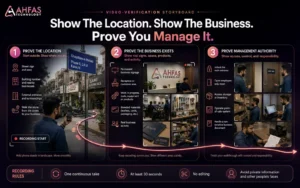
1. Prove the Location
Show:
- street signs
- building number
- neighbouring businesses
- surrounding area
- external entrance
- route from the street to the business
2. Prove the Business Exists
Show:
- permanent signage
- business name on the entrance
- reception or customer area
- interior workspace
- products
- equipment
- branded materials
The business name visible in the video should match the profile.
3. Prove You Manage the Business
Show something that a customer or member of the public would not normally control, such as:
- unlocking the entrance
- opening an employee-only area
- accessing a storage room
- operating a point-of-sale system
- opening a cash register
- handling non-sensitive business documents
Service-Area Business Video Checklist
A service-area business may not have a public storefront.
Its video can show:
Location Evidence
- street or neighbourhood signs
- building number
- nearby landmarks
- the real base of operations
Business Evidence
- professional tools
- work equipment
- branded uniforms
- business cards
- service vehicle
- product inventory
- work materials
Management Evidence
- unlocking a branded vehicle
- accessing specialist tools
- showing a non-sensitive invoice
- demonstrating a business process
- accessing an employee-only workspace
If customers do not visit the base address, keep the address hidden from public display and show only the service area.
Why Does Google Reject a Verification Video?
A video may fail when it does not prove all required elements.
Common weaknesses include:
- business signage is missing
- the sign does not match the profile name
- the surrounding street or building is not shown
- the location cannot be connected to the profile address
- no tools, products, equipment, or business activity are visible
- no management authority is demonstrated
- the recording contains cuts or edits
- the video was not created through the Business Profile
- the business model does not match the selected profile type
- the footage belongs to a different branch or location
- sensitive information or other people’s faces appear
After uploading a video, Google’s review can take up to five business days. If the profile shows Review issues, read the listed problems and record a replacement video that includes both the valid evidence from the first attempt and the missing evidence Google identified.
Real-World Pakistan Case: Repeated Postcards and an Address Mismatch
A public Google Business Profile Community thread described an Islamabad real estate business that requested verification postcards several times over approximately two months without receiving one.
A Google Product Expert reviewing the information identified two possible problems:
- the profile name included “Head Office,” which may not have been part of the real-world business name
- the address on the Business Profile differed from the address used on the company website and by the building itself
The expert suggested that these inconsistencies could be contributing to the failed verification process. The thread does not provide a confirmed final outcome, so it should be treated as a troubleshooting example rather than proof of a guaranteed solution.
What This Pakistan Case Teaches
Before requesting another code, compare your information across:
- Google Business Profile
- website Contact page
- website footer
- official documents
- storefront signage
- building or plaza information
- invoices
- social profiles
- business directories
A postcard cannot solve contradictory business information.
The profile must first reflect the same real-world business customers and public sources can verify.
What Evidence Should You Prepare for Google Support?
Google may request evidence to confirm the business and your authority to manage it.
Prepare a private evidence folder containing relevant items such as:
- business registration document
- business licence or permit
- recent utility bill
- lease or tenancy document
- business telephone bill
- invoice
- storefront photographs
- permanent signage photographs
- interior workspace photographs
- business cards
- tools or professional equipment
- vehicle branding
- website Contact page
- map location
- proof of access to the premises
Not every case requires every document.
The important details should remain consistent:
- business name
- physical address
- telephone number
- website
- business activity
- profile category
Do not upload private business documents to a public community thread. Use only Google’s official verification or support process when evidence is requested.
Copy-Ready Google Support Message
Subject
Google Business Profile verification code not received
Message
Hello Google Business Profile Support,
I am the owner or authorised representative of [Business Name], located at [Complete Business Address].
I requested verification through [postcard, SMS, phone, or other method] on [date], but the verification code has not arrived.
I have confirmed that:
- the business is eligible for a Google Business Profile
- the profile uses the real business name
- the address and map pin are accurate
- the business information matches the website and documents
- I have not changed the name, address, or category while waiting
- I have waited for the stated verification period
Please review the profile and advise me on the next available verification step.
Business Profile link: [Insert link]
Google Account email: [Insert email]
Verification request date: [Insert date]
Thank you.
Verification, Ownership, Duplication, and Suspension Are Different
Not every profile displaying a warning needs another code.
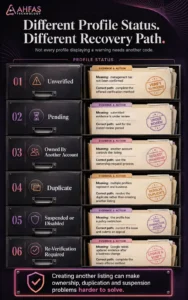
| Profile Status | What It Means | Correct Action |
| Unverified | Google has not confirmed management | Complete the offered verification method |
| Pending | Evidence or code was submitted and is under review | Wait for the stated review period |
| Owned by another account | Someone else controls the listing | Use Google’s ownership-request process |
| Duplicate | More than one profile represents the same business | Resolve the duplicate rather than creating another profile |
| Suspended or disabled | Google restricted the profile for a policy reason | Correct the issue and submit an appeal |
| Re-verification required | Google needs updated evidence after a change | Complete the newly offered method |
| Verification option missing | Account, profile, or technical review may be required | Contact official support |
Creating another listing will not solve an ownership or suspension issue. It may create an additional duplicate and make the situation harder to resolve.
Mistakes That Can Delay Verification
Requesting Multiple Codes
Each new request can invalidate the code already in transit.
Editing Core Details While Waiting
Changing the name, address, or category can invalidate the active postcard code.
Using a Keyword-Stuffed Name
The profile should use the genuine real-world business name.
Entering an Incomplete Address
Missing suite, floor, building, block, or postal information can cause delivery and identity problems.
Using a Virtual Office
A rented mailing address is not eligible when the business does not genuinely operate there.
Displaying a Home Address Customers Cannot Visit
Service-area businesses should hide residential addresses and show appropriate service areas instead.
Recording an Incomplete Video
A video showing only the storefront sign does not prove management authority. A video showing only equipment does not prove the location.
Creating a Duplicate Listing
Do not create another profile because verification is delayed.
Sharing the Code
Keep the verification code private. Google will not ask you to share it with an agency or support representative.
Giving an Agency Primary Ownership Too Early
The business owner should keep primary ownership and add the agency as a manager or authorised owner where appropriate.
What to Do Immediately After Verification
Verification gives you control of the profile. The next step is to make the information accurate, useful, and connected to your website.
Complete the Core Information
Review:
- business name
- primary category
- secondary categories
- address or service area
- opening hours
- telephone number
- website
- business description
- services
- photographs
Add Services Accurately
Google allows service businesses to add service groups, descriptions, and prices where the feature is available. Services may also be highlighted when users search for them.
Build a Genuine Review Process
Ask real customers for honest feedback after completing the service.
Do not:
- buy reviews
- create fake accounts
- offer rewards for positive-only reviews
- ask employees to pose as customers
- pressure customers to remove legitimate criticism
Connect the Profile With the Website
Your website should confirm:
- official business name
- location or service areas
- telephone number
- core services
- opening hours
- contact options
- proof and trust signals
A profile with strong information but an unclear website can still lose enquiries. AHFAS Technology helps businesses connect SEO, websites, content, and Google visibility through a practical digital growth approach.
Track Customer Actions
Monitor:
- calls
- website visits
- direction requests
- bookings
- form submissions
- WhatsApp enquiries
- search queries
- landing-page conversions
Verification is not the final result. The real result is making the business easier to find, trust, and contact.
Google Business Profile Verification Checklist
Before Requesting Verification
- The business is eligible
- The correct Google Account is being used
- No existing profile already represents the business
- The business name matches real-world branding
- The primary category is accurate
- The telephone number works
- The full physical address is correct
- The map pin marks the real location
- The postal code is accurate
- The website shows consistent information
- The correct storefront, service-area, or hybrid model is selected
- Permanent signage exists where required
While Waiting for a Postcard
- Do not edit the business name
- Do not edit the address
- Do not change the primary category
- Do not request another code prematurely
- Record the date of the request
- Monitor business mail
- Keep the code private
- Enter the newest active code promptly
Before Recording a Video
- Plan one continuous recording
- Use the Business Profile on a mobile device
- Show the street or surrounding location
- Show the building or business entrance
- Show permanent signage where relevant
- Show tools, products, equipment, or workspace
- Prove management access
- Avoid people’s faces
- Avoid sensitive business or identity information
- Record at least 30 seconds
- Do not edit the video
Before Contacting Support
- The stated waiting period has passed
- Eligibility has been confirmed
- Profile information follows Google’s guidelines
- No duplicate profile exists
- Evidence has been organised
- Screenshots of the verification status are available
- The Business Profile link is ready
- The request date is documented
- The correct account is signed in
Final Thoughts
When Google Business Profile verification in Pakistan gets stuck, do not keep changing the listing or requesting new codes.
Confirm eligibility, correct the business information, preserve the active request, prepare strong evidence, and escalate through the official support process only when the stated waiting period has passed.

Still stuck after following the correct steps? Request a local visibility review from AHFAS Technology before another failed attempt creates more confusion.
Frequently Asked Questions
How long does Google Business Profile verification take in Pakistan?
The time depends on the method. Google says most postcard codes arrive within 14 days. After you complete a verification method, Google may review the submission for up to five business days.
Why is my Google Business Profile verification code not arriving?
Possible causes include an incomplete address, SMS or call filtering, an IVR phone system, repeated code requests, edits to core profile details, an ineligible location, or inconsistent business information.
Can I choose phone verification instead of postcard verification?
No. Google automatically selects the methods available to each profile. You can use only the options displayed. Contact support when the available method repeatedly fails after you have followed the required steps.
Should I request another postcard after 14 days?
First confirm that the address is accurate and that no profile details were edited. Requesting another code invalidates the earlier code. Follow the current instructions shown on your profile and contact support when necessary.
How long is a postcard verification code valid?
Google states that postcard codes expire after 30 days. Only the newest active code will work if more than one has been requested.
Can I verify a Google Business Profile by SMS in Pakistan?
You can use SMS verification only when Google offers it. The number must receive automated text messages directly and should belong to the business.
Can I verify an online-only business?
Generally, no. Google Business Profiles are designed for eligible businesses that make in-person contact with customers. Online-only businesses and lead-generation listings are not eligible under Google’s current guidelines.
Can I use my home address?
A genuine home address may be used privately as the base of an eligible service-area business. If customers do not visit the location, hide the address and display the real service areas instead.
Can I verify a business using a virtual office?
A virtual mailing address is generally not eligible. A coworking office may qualify only when the business has its own signage, staff, customer access, and genuine operations at that location.
What should I show during video verification?
Show the surrounding location, business entrance or operating base, signage where relevant, products or professional equipment, and proof that you manage the business, such as unlocking the premises or accessing employee-only areas.
Why was my video verification rejected?
The video may not have proven the location, business activity, or management authority. It can also fail when the recording contains edits, lacks signage, shows another location, or does not match the business type.
Can an agency guarantee verification?
No. Google controls eligibility, available verification methods, evidence review, and final approval. An agency can help identify errors, prepare evidence, improve consistency, and guide the support process, but cannot guarantee acceptance.